

Confirming the VPN is connected
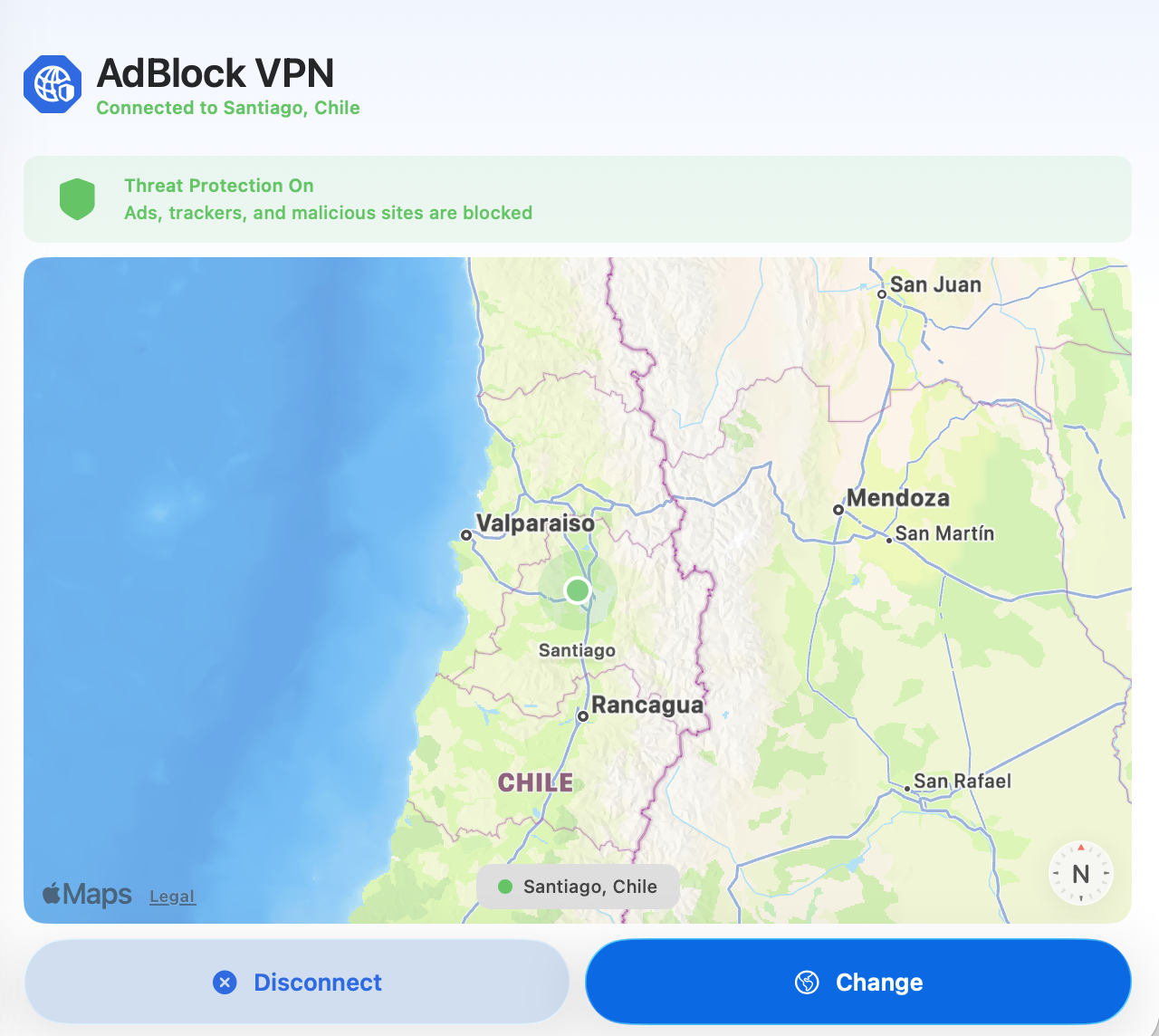
When connected, the menu will display "Connected to" followed by the server location you have selected. You will also see the "Disconnect" button displayed.
Has my IP address been updated?
To check if AdBlock VPN is masking your IP address, start by checking your IP address with the VPN disconnected. We like https://ipleak.net/, but any IP address detection site will work for this.
Once your current location and IP address have been confirmed, connect to the VPN and reload the page. Your location and IP address should update to reflect the server location you chose.
Can I see if I'm connected at a glance?
Yes!
On Mac, the icon on the top menu bar will appear in black when you are connected. Otherwise, the icon is grey. Mac also provides an option to display connection time: Use the VPN status icon in the menu bar on Mac.
On Windows 11, a blue shield will display on the taskbar when you're connected to a VPN.
On iOS 26, a VPN badge will appear on the top menu bar while you’re connected.
On iOS 18 and under, swipe down from the top of the screen to display the control center. A VPN badge will appear if connected.
On Android, swipe down your notification panel and look for a key or lock icon, indicating a VPN is active.