

AdBlock VPN Help Center
Breadcrumbs

How to install and uninstall AdBlock VPN

When you connect to the VPN, any browser you use to access the internet will use your secure VPN connection.

Steps to Install

To update to Version 4, download and install the latest version — there is no in-app update option.

AdBlock VPN for Windows

AdBlock VPN for Windows

Requires Windows 10 or higher (64-bit recommended)

  1. Navigate to the official AdBlock VPN Windows page.

  2. Click the Download for Windows button to open AdBlock VPN in the Microsoft Store.

  3. Click Download.


AdBlock for Safari & VPN (macOs)

AdBlock for Safari & VPN (macOs)

Requires macOS 14.6 or higher. AdBlock VPN is now available only in the AdBlock for Safari & VPN app on macOS and is no longer offered as a stand-alone app.

Install the app

  1. Find AdBlock for Safari & VPN in the App Store and tap Get.

  2. Once downloaded, click Open in the App Store, or launch it from your Applications folder or Launchpad.

After installing the app, you'll be guided through the initial setup. Use the steps below to review or adjust your settings at any time.


Enable Safari ad blocking

Optional — skip this section if you only want to use the VPN.

  1. Go to Safari > Settings > Extensions, find AdBlock, and check the box to enable it.

  2. Go to Safari > Settings > Websites > Content Blockers and set "When visiting other websites" to On.

  3. Go to Safari > Settings > Websites > AdBlock (under Extensions) and set "For other websites" to Allow.


Enable the VPN

Requires a Premium subscription — skip this section if you’re only using the Safari ad blocker.

After opening the app, logging in with your Premium subscription, and connecting to the VPN for the first time, AdBlock will ask permission to add VPN configurations to your Mac.
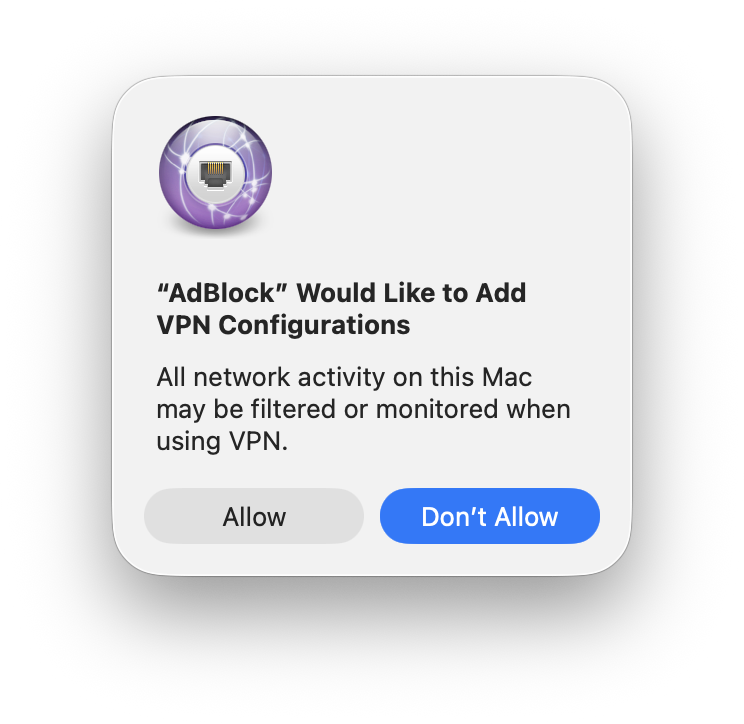
Screenshot 2026-04-28 at 11.38.44 AM.png

What to choose:

  • Click Allow if you want to use the VPN feature (it lets AdBlock route your traffic through our servers for network-wide ad and tracker blocking).

  • Click Don't Allow if you only want the Safari ad blocker and don't plan to use the VPN.
To change your selection later: go to System Settings > VPN, click next to AdBlock, and click Remove Configuration to disable it. To re-enable, open the app and click Connect — you'll be prompted again.


AdBlock VPN for Android (Android, ChromeOS)

Android/ChromeOS

Requires Android 7.1 or higher

  1. Find AdBlock VPN for Android in the Google Play Store and tap Install.

  2. Tap Open, then follow the prompts.


AdBlock for Safari + VPN (iOS, iPadOS)

AdBlock for Safari + VPN (iOS, iPadOS)

Install the app

Requires iOS/iPadOS 17.0 or higher. AdBlock VPN is now available only in the AdBlock for Safari + VPN iOS app and is no longer offered as a stand-alone app.

  1. Find AdBlock for Safari & VPN in the App Store and tap Get.

  2. Follow the prompts to complete the install.

After installing the app, you'll be guided through the initial setup. Use the steps below to review or adjust your settings at any time.


Enable Safari ad blocking

Optional — skip this section if you only want to use the VPN.

  1. Go to Settings > Apps > Safari > Extensions.

  2. Tap AdBlock.

  3. Turn on Allow Extension.

  4. Scroll down to All Websites and select Allow.


Enable the VPN

Requires a Premium subscription — skip this section if you're only using the Safari ad blocker.

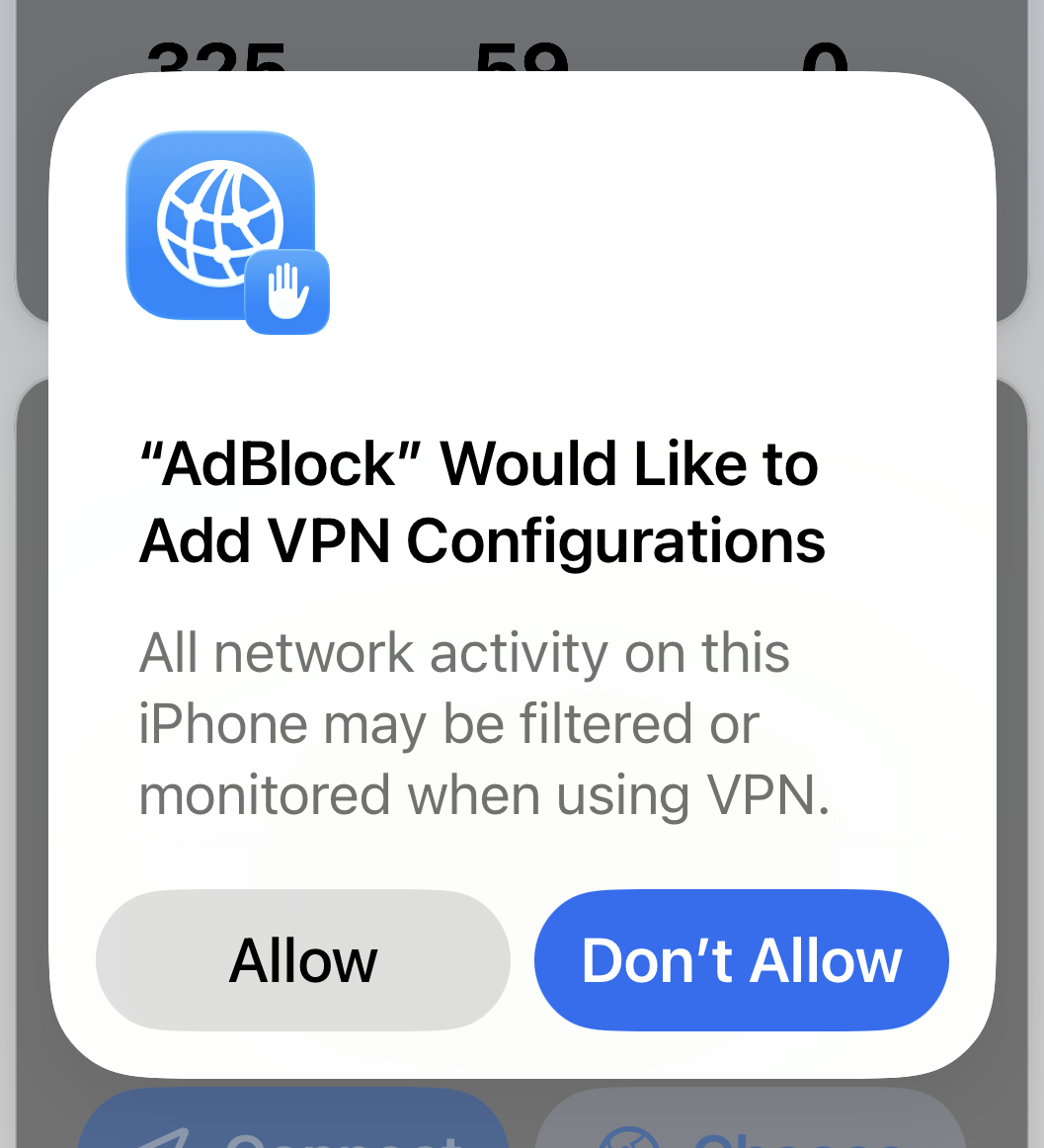
After opening the app, logging in with your Premium subscription, and connecting to the VPN for the first time, AdBlock will ask permission to add VPN configurations to your device.

What to choose:

  • Tap Allow if you want to use the VPN feature (it lets AdBlock route your traffic through our servers for network-wide ad and tracker blocking)

  • Tap Don't Allow if you only want the Safari ad blocker and don't plan to use the VPN.

IMG_3905.PNG

To change your selection later: go to Settings > General > VPN & Device Management > VPN, tap next to AdBlock, and tap Delete VPN to disable it. To re-enable, open the app and tap Connect — you'll be prompted again.


Steps to Uninstall

Uninstall steps are provided for both Version 4 and earlier versions.

AdBlock VPN for Windows

AdBlock VPN for Windows

  1. Quit AdBlock VPN (press Alt + F4).

  2. Open the Start Menu and click on Settings (the gear icon).

  3. In Windows 11, select Apps and then Installed apps. In Windows 10, select Apps and then Apps & features.

  4. Click on AdBlock VPN (or the three-dot icon in Windows 11) and select Uninstall.

  5. When prompted, click Uninstall.


In April 2026, AdBlock VPN for Windows moved to the Microsoft Store (Version 4.0.0). If you're still running the older direct-download version and need to uninstall it, follow the steps below.

  1. Quit AdBlock VPN (AdBlock VPN icon > Preferences (triple bar) > Exit & Disconnect).

  2. Open the Start Menu and click on Settings (the gear icon).

  3. In Windows 11, select Apps and then Installed apps. In Windows 10, select Apps and then Apps & features.

  4. Click on AdBlock VPN (or the three-dot icon in Windows 11) and select Uninstall.

  5. On the uninstall window, select the option "Remove all account data, logs and settings", then click Uninstall.

  6. Once successfully uninstalled, click Done.

After uninstalling, if you want to completely remove all files associated with the app, use these steps:

  1. In "File Explorer" type "%programfiles(x86)%" into the address bar, then select the "AdBlock" folder and delete it.

  2. In "File Explorer" type "%programdata%" into the address bar, then select the "AdBlock" folder and delete it.

  3. Restart your computer.


AdBlock for Safari & VPN (macOS)

AdBlock for Safari & VPN (macOS)

If you have the newer AdBlock for Safari & VPN app and need to uninstall it, please refer to our AdBlock uninstall guide.


The standalone AdBlock VPN app for Mac has been discontinued. If you still have it installed and need to uninstall it, follow the steps below.

  1. Quit AdBlock (AdBlock VPN > Quit).

  2. Open Applications.

  3. Right-click on the AdBlock VPN app and select Move to Trash.

  4. A dialog window will confirm this action since the app is associated with a system extension.

  5. Click Continue.   

    • Enter your Mac's password (or use Touch ID) if prompted and click OK.


AdBlock VPN for Android (Android, ChromeOS)

AdBlock VPN for Android (Android, ChromeOS)

  1. Open the Google Play Store app.

  2. At the top right, tap the Profile icon.

  3. Tap Manage apps & devices > Manage.

  4. Select AdBlock VPN.

  5. Tap the trash icon.

  6. When prompted, tap Uninstall.


AdBlock for VPN + Safari (iOS, iPadOS)

AdBlock for VPN + Safari (iOS, iPadOS)

If you have the newer AdBlock for Safari & VPN app and need to uninstall it, please refer to our AdBlock uninstall guide.


The standalone AdBlock VPN app for iOS has been discontinued. If you have the older standalone AdBlock VPN app and need to uninstall it, follow the steps below.

  1. Touch and hold the AdBlock VPN app on the Home screen.

  2. Tap Remove App.

  3. Tap Delete App.

  4. Tap Delete.