

When using AdBlock VPN on a Mac, you'll need to allow AdBlock VPN to install the system extension and configure a VPN profile. You will be prompted to do this during the installation process. This article will help identify the prompts you'll encounter and how to address them.
macOS 15 and above
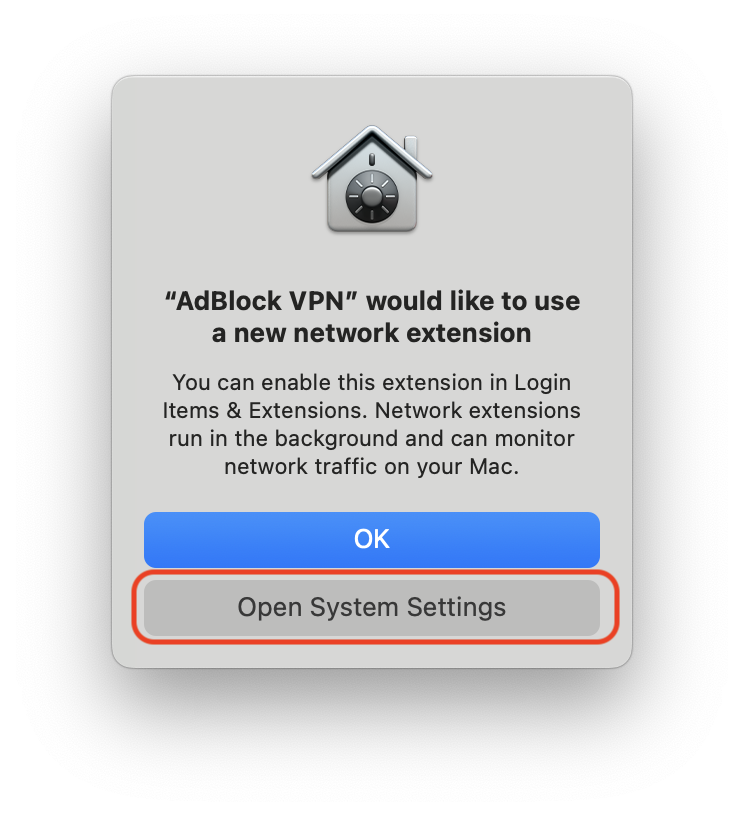
"AdBlock VPN" would like to use a new network extension
One prompt you may encounter is the "System Extension Blocked" dialogue: The program "AdBlock VPN" tried to load new system extension(s). If you want to enable these extensions, open Security & Privacy System Settings.
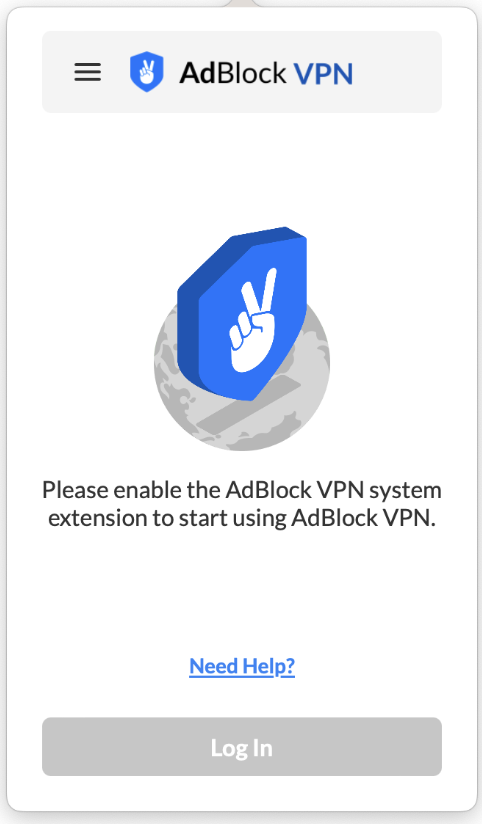
You may also encounter a similar prompt on the AdBlock VPN popover menu: Please enable the AdBlock VPN System extension to start using AdBlock VPN.
|
|
|---|
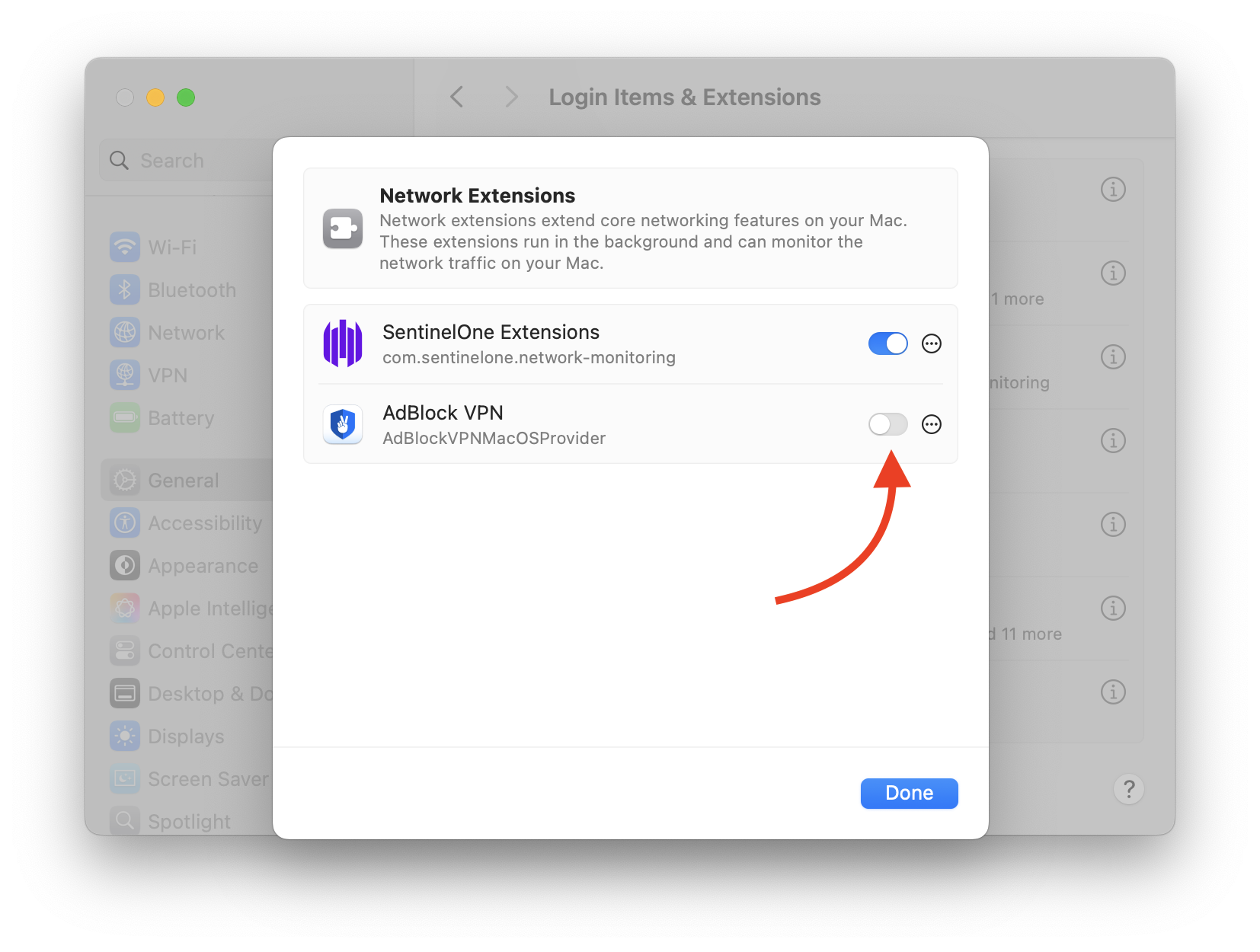
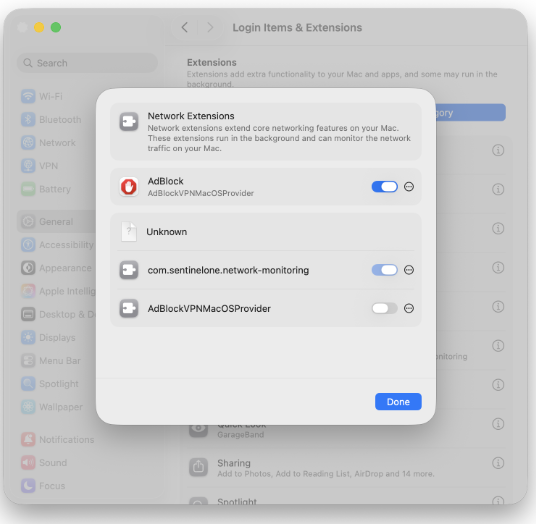
For either one of these messages, go to System Settings \> General \> Login Items and Extensions. Under Extensions, select By Category, then click
|
|
|---|---|
|
AdBlock VPN stand-alone app |
AdBlock Mac app with VPN integration |
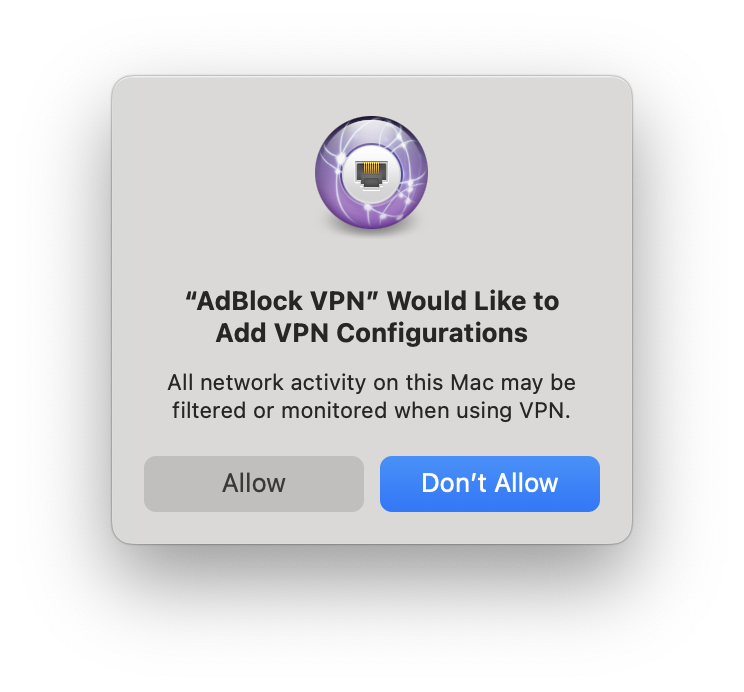
"AdBlock VPN" Would Like to Add VPN Configurations
Another prompt you may encounter is the "'AdBlock VPN' Would Like to Add VPN Configurations" dialogue: All network activity on this Mac may be filtered or monitored when using VPN.
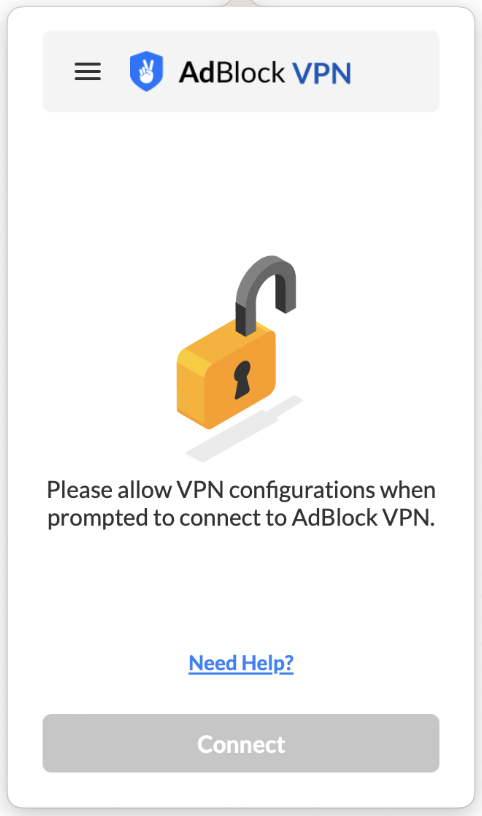
And you may see a prompt on the AdBlock VPN popover menu: Please allow VPN configurations when prompted to connect to AdBlock VPN.
|
|
|---|
Click Allow to add these configurations. Without these configurations, AdBlock VPN can not be used. If at anytime you dismiss the prompt by clicking Don't Allow or you no longer see the prompt, simply restart the app and the dialogue will display again.
macOS 14 and lower
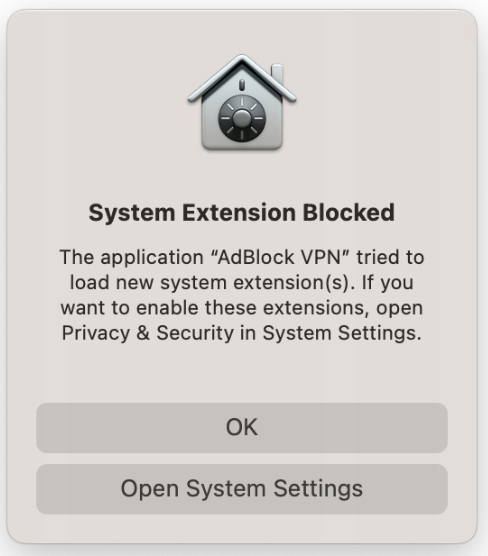
System Extension Blocked
One prompt you may encounter is the "System Extension Blocked" dialogue: The program "AdBlock VPN" tried to load new system extension(s). If you want to enable these extensions, open Security & Privacy System Settings.
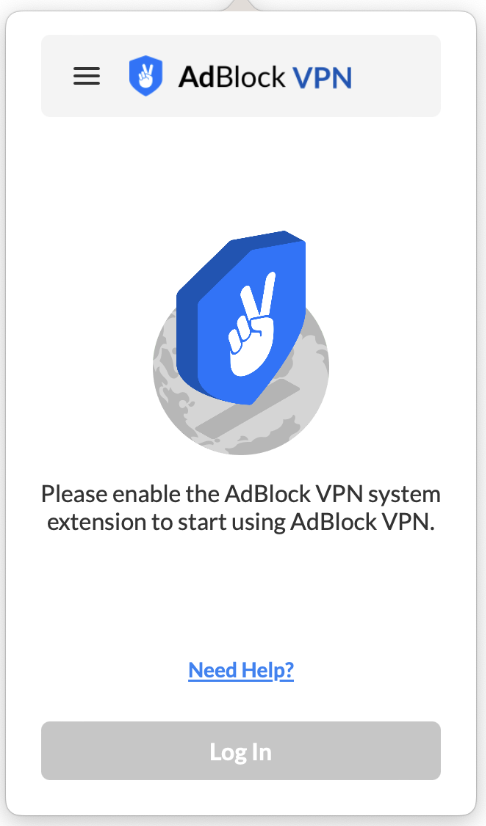
You may also encounter a prompt on the AdBlock VPN popover menu: Please enable the AdBlock VPN System extension to start using AdBlock VPN.
|
|
|---|
For either one of these messages, go to System Settings \> Privacy & Security. If prompted, click the lock to authenticate and make changes, then click Allow next to System software from application "AdBlock VPN" was blocked from loading.
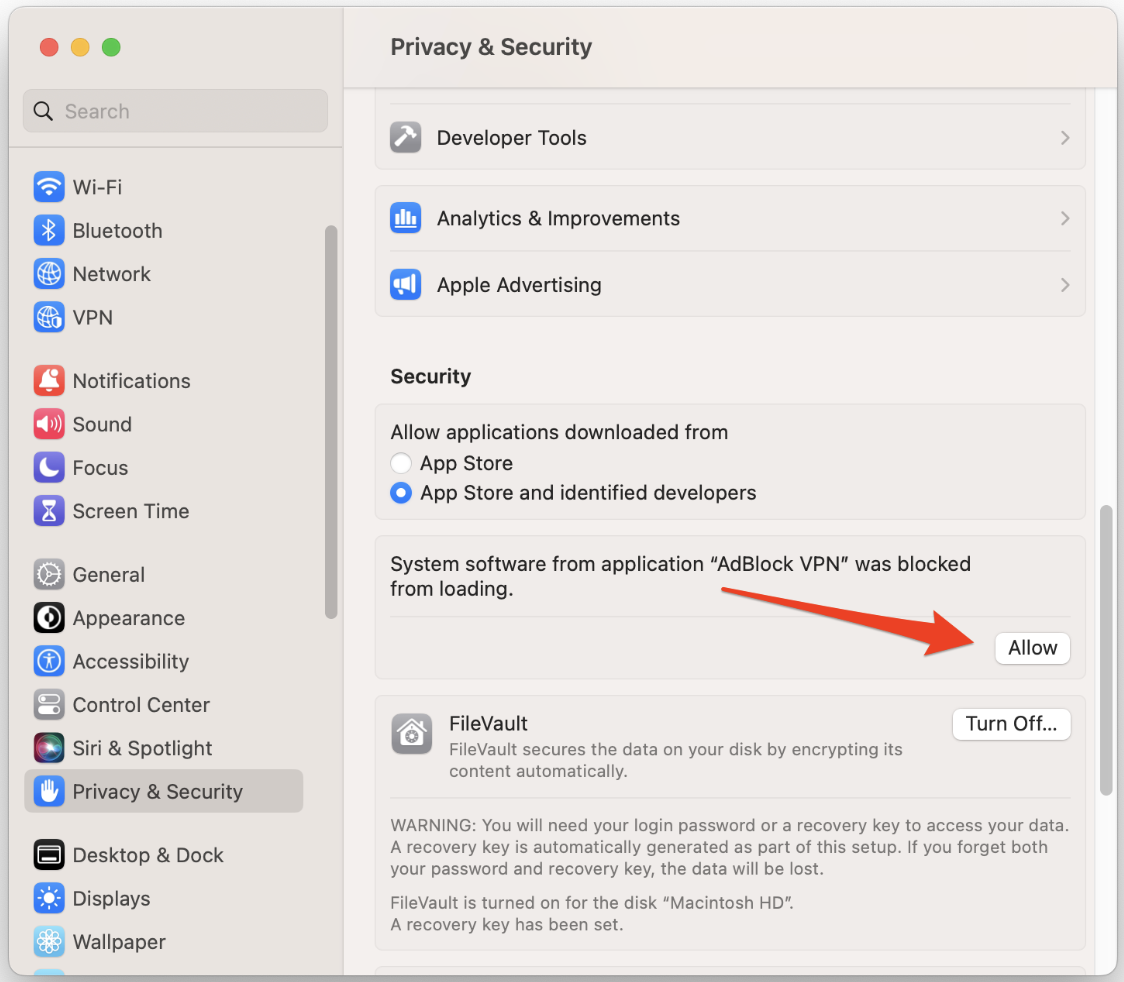
Note: This must be done within 30 minutes of opening the app. If you don't see the "Allow" option, quit the app, restart your Mac, and the option should appear.
"AdBlock VPN" Would Like to Add VPN Configurations
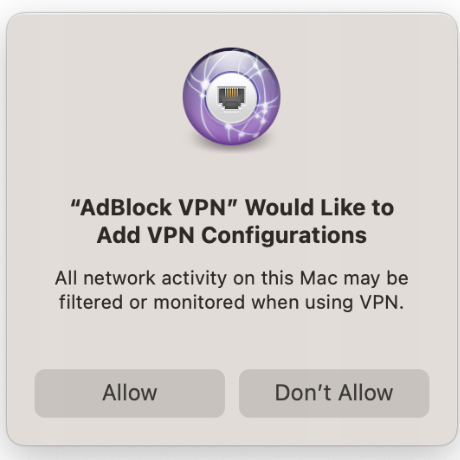
Another prompt you may encounter is the "'AdBlock VPN' Would Like to Add VPN Configurations" dialogue: All network activity on this Mac may be filtered or monitored when using VPN.
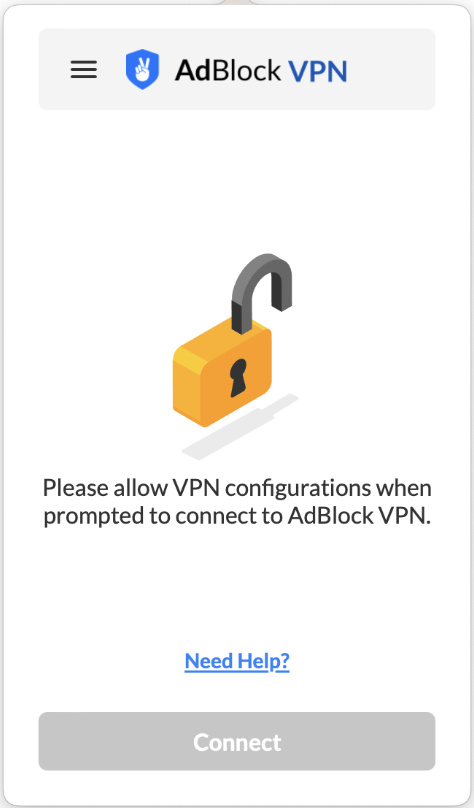
You may also encounter a prompt on the AdBlock VPN popover menu: Please allow VPN configurations when prompted to connect to AdBlock VPN.
|
|
|---|
Click Allow to add these configurations. Without these configurations, AdBlock VPN can not be used. If at anytime you dismiss the prompt by clicking Don't Allow or you no longer see the prompt, simply restart the app and the dialogue will display again.